Computer vision turns images and video into information that software can use. That might mean reading text from a photo or spotting a missing part on a production line. The value comes from what the system does with that information.
If you’re wondering where it could fit into your business, computer vision examples offer a useful starting point. They show how teams turn a visual task into a working feature. They also reveal where the technology needs a person’s judgment.
In this guide, we explore eight examples from everyday apps and industry workflows. You’ll see how each system uses visual information to support a specific action, with practical lessons to help you assess an idea for your own product or process.
What is computer vision?
Computer vision is software that reads useful details from images or video. The difference between computer vision and image processing is what the software does with the image. Image processing modifies an image, while computer vision interprets its content.
For example, a camera films a production line, and software checks the footage for a missing part. That check is a task for computer vision. The wider application then uses the result to trigger a response, such as alerting an employee.
In practice, the application may need other inputs to support that response. If the camera view is unclear, a sensor can provide more evidence. Business rules then determine whether to accept the result and what should happen next.
8 computer vision examples at a glance
These examples of computer vision cover everyday features and industry workflows. The table separates the visual task from the response it supports.
| Example | Visual input | Vision task | What happens next |
| Apple Face ID | Depth and infrared face data | Match an enrolled face | Authenticate device access |
| Google Lens | Text in an image | Recognize text | Copy or translate words |
| Tesla Vision | Views from vehicle cameras | Interpret the road scene | Support supervised driving |
| BMW Artificial Intelligence Quality Next (AIQX) | Production images | Check completeness and anomalies | Notify production employees |
| See & Spray Ultimate | Images of crops and weeds | Distinguish plants | Target herbicide application |
| Camera-based Just Walk Out | Store video and sensor inputs | Track item interactions | Update a virtual shopping cart |
| Viz LVO (large vessel occlusion) | Brain CT angiography images of blood vessels | Flag a suspected blockage | Notify a specialist |
| Hawk-Eye | Optical views of a tennis ball | Track movement and bounce | Support electronic line calls |
1. Face ID uses facial recognition to unlock your device

For device access, Face ID checks whether your face matches the one enrolled on the device. This identity check is called authentication and helps determine whether to grant access.
To do this, Apple’s TrueDepth camera captures a depth map and an infrared image of your face. Your device converts these inputs into a mathematical representation, then compares it with your enrolled face data. A successful match can grant access when the device’s security rules allow it.
Those rules also explain why your phone sometimes asks for a passcode instead. After a restart, for example, you need to enter your passcode. Apps can use Face ID for authentication, but they do not receive your enrolled face data.
For your own application, the key is to decide what a successful match should allow someone to do. Detecting a face tells you someone is there. Verifying an enrolled user helps determine whether that person should have access.
2. Google Lens turns image text into usable words

Google Lens extracts text from an image so you can copy or translate it. For example, you can use the words on a sign or menu without typing them yourself.
This starts with optical character recognition, or OCR, which reads the visible text. A separate language task then handles translation. So if a translated phrase looks wrong, check the recognized text first. Even one misread character can affect the translation.
Image quality matters at that first step. Small, blurry, or stylized text can be harder to recognize, which can also affect the translated result. Before using this as an important value in another process, compare the extracted text with the original image.
Our AI invoice extraction project shows what that next step involves. We combined OCR with natural language processing to extract invoice content, then used rules to match fields and table entries. Supplier layouts varied, so a readable word still needed to land in the right field.
For an invoice, the result must retain its context so the receiving workflow knows what the value means.
3. Tesla Vision supports supervised driving

On the road, knowing where an object is helps a driving system decide what to do next. Tesla Vision uses camera views to support driving functions. The driver remains responsible for the vehicle.
For example, Full Self-Driving (Supervised) uses these views as part of a wider driving system. The cameras provide information about the road scene, which the software uses to plan and carry out actions such as changing lanes or navigating around other road users.
Even with these features, the driver must stay alert and supervise the system. They do not make the car autonomous. The available functions also depend on the car’s hardware and software.
If you’re assessing a similar system, decide what the operator needs to do alongside the visual task. An alert asks a person to respond, while a control signal directs equipment to act. Then test that response as the scene changes, including how the operator takes control when needed.
4. BMW AIQX checks quality on the production line

On the production line, BMW’s AIQX checks images for assembly problems and sends feedback to employees. Each check focuses on a specific question, such as whether a required part is present. Then, each piece of feedback reaches employees through smart devices, telling them what to do next.
Our industrial quality-control project works the same way. We built a system for a US manufacturer that identified materials and located them on a moving conveyor belt. The output triggered the line’s existing programmable logic controller (PLC), which operated the reject mechanism.
To reject the right item at the right time, the controller needed the material’s position. We therefore sent that position to the hardware already on the line. A correct label alone would not tell the controller where to act.
When assessing computer vision in manufacturing, start with what the next step needs from the image. An alert for employee review serves a different purpose from a signal that controls equipment, so the output should support the response you intend.
5. See & Spray targets weeds in precision agriculture
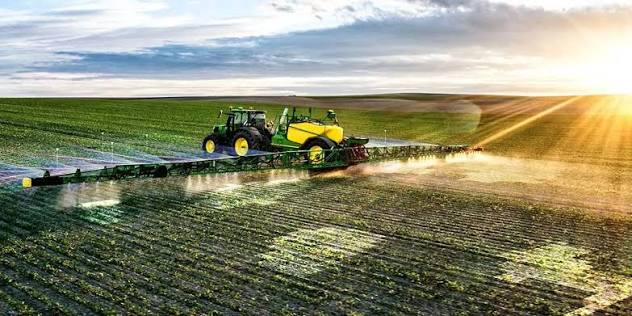
John Deere’s See & Spray Ultimate identifies weeds so the sprayer can target herbicide treatment as it moves through a field.
To do this, cameras capture images of plants, and machine-learning software analyzes them to distinguish weeds from crops. The sprayer then uses that result to target treatment. Here, computer vision guides a physical action, so plant recognition and equipment control need to work together.
To apply this approach to your own workflow, start with the action you need the system to take. Then work backward to what the image must reveal. Recognizing an object may be enough to trigger a review, while equipment acting on that object may also need its position.
Next, test how that information reaches the receiving system. A correct result is only useful if it arrives in time and remains linked to the right target. Check that connection under your own working conditions, so you know the visual result leads to the intended action.
6. Just Walk Out tracks purchases for cashierless checkout
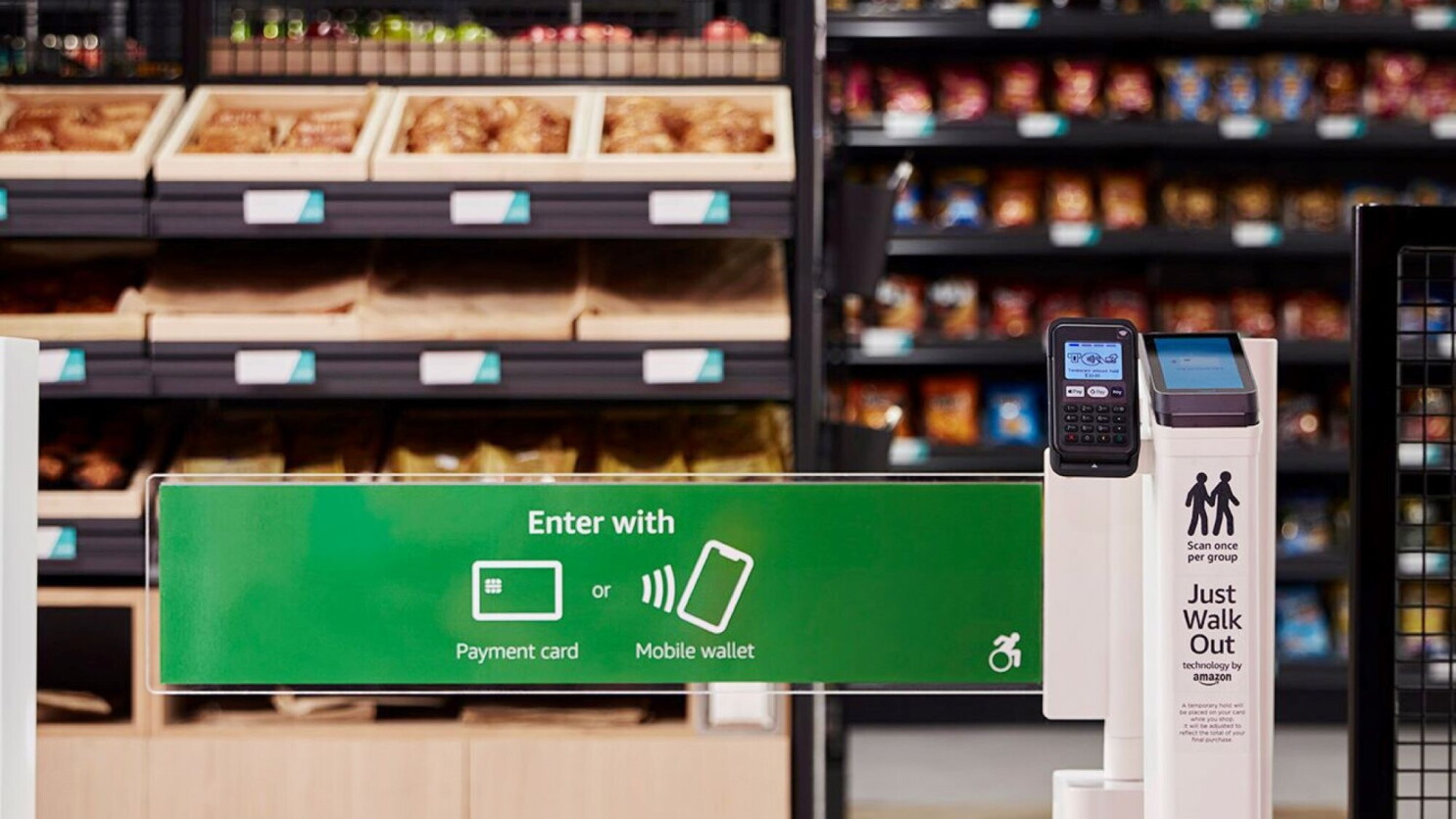
Computer vision can also turn activity into a record. Camera-based Just Walk Out of Amazon tracks item interactions during a shopping trip and updates a virtual cart. Picking up an item adds it to the cart, while putting it back removes it.
To follow these interactions, ceiling-mounted cameras observe what shoppers do. Shelf weight sensors provide extra evidence for small products that are harder to see. Together, these inputs help the system determine what happened before updating the cart.
A temporary code links the shopper’s interactions to their trip throughout the visit. In this camera-based design, the system tracks those interactions without collecting or using shopper biometrics.
Our store analytics project used cameras to understand store operations. We added people detection and tracking to the stores’ existing closed-circuit television (CCTV) systems. Software running on the device analyzed staff activity and produced traffic metrics for dashboards.
The output therefore depends on what the workflow needs to record. Our project produced store-operations metrics, while checkout requires purchase events linked to the right shopping trip. To apply this approach in your own field, define what each visual event should update and which record it belongs to.
7. Viz LVO flags suspected vessel blockages for review
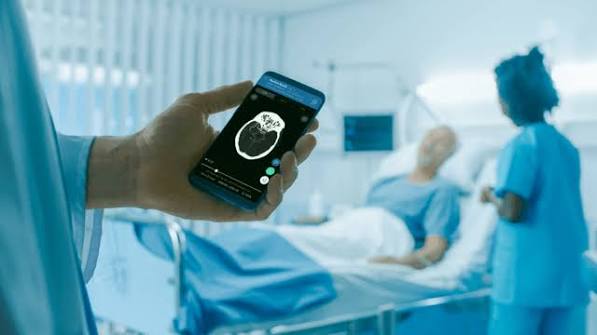
Computer vision in healthcare can help bring an image finding to a specialist’s attention. For example, Viz LVO alerts a specialist to a suspected large-vessel blockage in brain scans.
The tool analyzes CT angiography images, which show blood vessels. It looks for suspected large-vessel occlusion, or LVO, in specified artery segments, then sends an alert for review.
The alert helps bring a suspected finding to a clinician’s attention, but it does not establish a diagnosis or replace a full patient evaluation. Mobile previews provide a quick view using compressed images. Before making care decisions, clinicians still need to review the non-compressed images in a diagnostic viewer.
For your own workflow, start by defining what the tool should flag, who should receive the alert, and what they need to review before acting. Then evaluate the process as a whole. A model’s detection result shows one step is working; demonstrating better care requires evidence from the full workflow.
8. Hawk-Eye tracks tennis balls for line calls
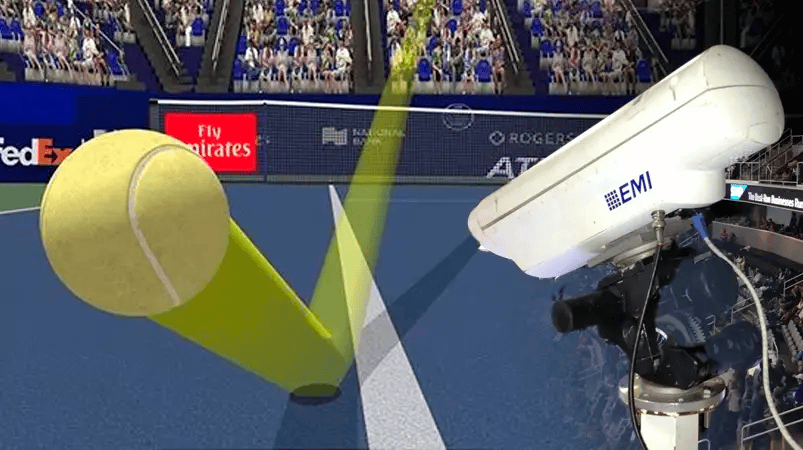
In tennis, a line call depends on where the ball lands relative to the court lines. Hawk-Eye uses optical tracking to follow the ball’s movement and judge its bounce against those boundaries.
To do this, the system tracks the ball across a sequence of images. Detecting a ball in one frame is only part of the task. The system also needs to determine where it bounced in relation to the court.
That result supports different forms of electronic line calling. A review system provides a decision when a player requests a challenge, while a live system makes calls for all bounces. In each mode, the tracking result enters the decision process at a different point.
The International Tennis Federation classifies systems for specific settings, surfaces, and modes of use. For your own application, the same principle applies: test the tracking system against the reference points and operating conditions it will use. Performance in one setting does not establish how it will work in another.
Does object tracking require facial recognition?
Object tracking does not always require facial recognition. Following a person through successive images and matching their face to a stored identity are different tasks.
The key difference is between following something and identifying someone. Tracking a warehouse cart means keeping track of the same cart as it moves. Checking whether a qualified person can enter a room requires matching them to a stored identity reference. Start with the result your task needs, then choose the data required to support it.
However, that choice only answers part of the privacy question. A purchase workflow still connects shopping events with payment, and other parts of the application may use identity services. Make sure to keep these data secure if you are in a position to handle them.
Review the full data flow, including what the system keeps after the visual task ends. Even without face matching, the wider workflow may still handle personal information.
Tip: Use a proof of concept to test one visible event before planning a wider build.
Put computer vision to work in your business
Choosing each of these computer vision examples to put into practices depends on your task and your problem. You don’t need to cover every possibility in the first build. Choose one that matters to your team and define what a useful result should look like. Then test it with images from your own setting, including the difficult cases. Use what you learn to decide whether the idea is ready for a wider rollout.
If you need help turning that idea into a working feature, our AI integration services connect vision models to the software you already use. We test the workflow with your data and plan how it handles errors. Once it goes live, we monitor how the model performs.